

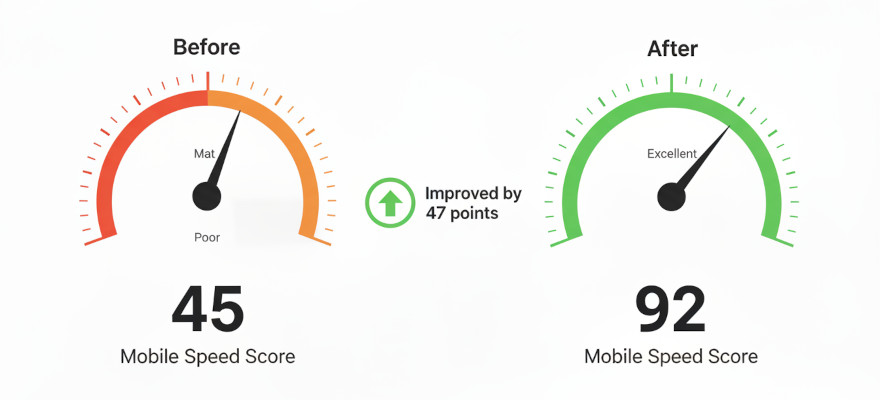
Your WordPress site is slow. You know it’s slow because you clicked a link, went to make coffee, came back, and the page was still thinking about it. Your visitors know it’s slow too — except they didn’t wait for coffee. They left.
A slow site doesn’t just annoy people. Google uses page speed as a ranking factor, which means a sluggish site gets pushed down in search results. So you’re losing visitors and making it harder for new ones to find you. Double punishment for the same crime.
The good news: most WordPress speed issues come from a handful of predictable causes, and none of them require you to rewrite code or switch platforms. Let’s fix the big ones.
Your images are almost always the problem
This is the number one speed killer on WordPress sites, and it’s not close. People upload photos straight from their phone or camera — 4MB, 5MB, sometimes 8MB per image — and WordPress dutifully serves every megabyte to every visitor. Multiply that by ten images on a page and you’re asking someone’s browser to download 50MB before anything loads. That’s not a web page, that’s a download.
The fix has two parts. First, resize before uploading. No image on a blog post or landing page needs to be wider than 1600px. Resize in any free tool (even Preview on Mac or Photos on Windows) before dragging it into WordPress. Second, install an image optimization plugin like ShortPixel, Imagify, or Smush. These automatically compress your images without visible quality loss — a 3MB photo becomes 150KB, and nobody can tell the difference except your load time.
If you do nothing else from this article, do this. It’s usually worth 2-4 seconds of load time on its own.
You have too many plugins (and half of them are doing nothing)
Every active plugin loads its own CSS and JavaScript files on every page — whether that page needs them or not. A contact form plugin loads its scripts on your About page. A slider plugin loads its library on pages with no slider. A social sharing plugin you installed in 2023 and forgot about loads everywhere, all the time, for no one.
Go to Plugins → Installed Plugins and be honest with yourself. If you haven’t used a plugin in months, deactivate and delete it. If two plugins do the same thing, pick one and remove the other. Twenty active plugins is not inherently bad — twenty plugins you don’t actually need is. The target isn’t a specific number; it’s making sure every active plugin earns its place.
You’re not using caching (and it’s free)
WordPress is dynamic — every time someone visits a page, PHP runs, the database gets queried, and the page is assembled from scratch. Caching takes that assembled page, saves a static copy, and serves that to the next visitor instead of rebuilding everything. It’s like cooking dinner once and serving leftovers all week, except the leftovers taste exactly the same.
Install a caching plugin. LiteSpeed Cache is excellent if your host uses LiteSpeed servers (Hostinger does). WP Super Cache and W3 Total Cache are solid free options for any host. Install one, turn it on, and your pages will load noticeably faster with zero effort on your part.
One important note: only use one caching plugin. Running two is like two people trying to drive the same car — nothing good happens.
Your hosting is the ceiling you can’t optimize past
Here’s an uncomfortable truth: if your hosting is slow, no plugin can fix it. You can optimize images, cache everything, and strip your site down to the bare minimum — and it’ll still be slow if the server itself takes two seconds to respond before your page even starts loading.
Cheap shared hosting ($2-3/month plans) crams hundreds of sites onto one server. It’s fine for testing and learning, but once your site has real visitors, the performance ceiling is low. Upgrading to a better hosting plan — even staying with the same provider — often makes a bigger difference than every optimization plugin combined.
If you’re on Hostinger, their Business plan and above use LiteSpeed servers with built-in caching, which handles both the hosting and caching issues in one move.
Render-blocking resources (the technical one)
If you’ve run your site through Google PageSpeed Insights and seen warnings about “render-blocking resources,” this is what it means: your browser has to download and process certain CSS and JavaScript files before it can show anything on screen. The more files, the longer the wait.
A plugin like Autoptimize (free) or the optimization features built into LiteSpeed Cache can combine and defer these files so the visible page loads first and the scripts load in the background. Enable “Optimize CSS” and “Defer JavaScript” — start with the defaults and test your site. If something looks broken, roll back one setting at a time until you find the conflict.
The 10-minute speed audit
Here’s your action plan, in order of impact:
- Optimize your images — resize to max 1600px wide, install ShortPixel or Imagify, and compress everything.
- Remove unused plugins — deactivate and delete anything you’re not actively using.
- Install a caching plugin — LiteSpeed Cache if your host supports it, WP Super Cache otherwise.
- Test with PageSpeed Insights — run your URL through pagespeed.web.dev and address the top recommendations.
- Consider your hosting — if your server response time is over 600ms, no plugin will save you. An upgrade might be the real fix.
Most sites go from “painfully slow” to “perfectly fine” with just the first three. The last two are for when you want to go from “fine” to “fast.” And honestly, “fine” is where most of your visitors stop caring — they just want the page to load before they lose interest. Give them that, and you’ve already won.