

What’s a badge (or eyebrow)?
You know those tiny labels you see at the top of a nice landing page section? The little pill that says something like “DONE-FOR-YOU” or “NEW” or “BESTSELLER,” usually with a small colored dot next to it? Designers call those badges or eyebrows — “eyebrow” because they sit just above the headline like, well, an eyebrow above an eye. They’re small, but they make a section feel polished and intentional.
They’re also, apparently, capable of ruining your entire afternoon.
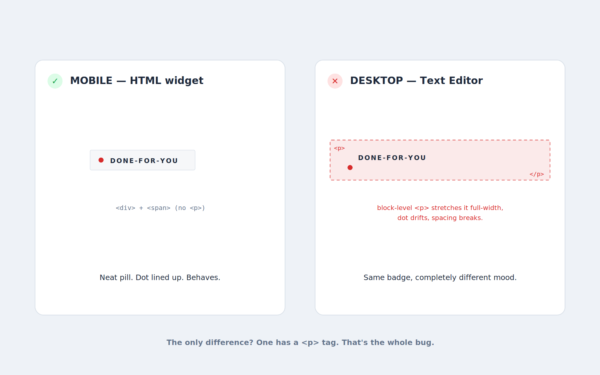
Here’s the scenario. You build a gorgeous badge. On mobile, it looks perfect — neat little pill, dot lined up beautifully, everything hugging tight. But on desktop, where you built it with Elementor’s Text Editor widget, it’s a mess. The badge stretches weird, the spacing is off, the dot won’t sit next to the text properly, and no amount of CSS seems to fully tame it. You start to suspect your computer has a personal vendetta against you. It doesn’t. But something is sabotaging you, and its name is the <p> tag.
Meet the two widgets that look identical but aren’t
If you’re new to Elementor, here are the two players in this story:
- The Text Editor widget — the friendly one with the little toolbar (bold, italics, lists). It’s built for paragraphs of actual writing, like blog content.
- The HTML widget — a plain box where you paste raw HTML code, and Elementor renders it exactly as you wrote it. No babysitting, no surprises.
That word “exactly” is about to matter a lot.
Block vs. inline: the concept nobody explains, that explains everything
Every element on a web page has a personality. Two personalities matter here:
Block-level elements are stage hogs. They demand their own line, stretch out to fill the full width available, and shove everything else above or below them. A paragraph — the <p> tag — is block-level. That’s correct behavior for paragraphs! You want each paragraph on its own line.
Inline elements are polite. They only take up as much room as they need and happily sit next to other things on the same line. A badge wants to be inline — a compact little pill that hugs its own content and minds its own business.
See the conflict yet? A badge is trying to be a small, well-mannered inline thing. But if it’s wrapped in a <p> tag, it inherits the personality of a full-width stage hog. The dot and the text get pushed around, the pill stretches, default paragraph margins sneak in, and your carefully written CSS spends all its energy just fighting the wrapper instead of styling the badge.
Here’s the kicker: the Text Editor widget automatically wraps whatever you type inside a <p> tag. You don’t add it. You can’t easily remove it. Elementor just puts it there because that’s literally what the Text Editor is for. So every badge you build in there starts life trapped inside a block-level box it never asked for.
Why the mobile version worked all along
Remember how the mobile badge looked perfect? Go peek at its HTML and you’ll see why. It was built like this:
<div class="wc-badge">
  <span class="wc-badge-dot"></span> Done-For-You
</div>
A <div> on the outside, a <span> for the dot, and the text. Notice what’s missing: there’s no <p> tag anywhere. No block-level troublemaker forcing weird behavior. That’s the entire reason it behaved. The mobile version wasn’t lucky — it was just built clean.
The fix: ditch the Text Editor, use the HTML widget
Instead of trying to wrestle the <p> tag into submission (you’ll lose), just don’t invite it to the party. Drop in an HTML widget and paste this exact markup:
<div class="wc-badge">
  <span class="wc-badge-dot"></span> Done-For-You
</div>
Then, in the widget’s Advanced → Custom CSS field, paste this:
selector .wc-badge {
  display: inline-flex !important;
  align-items: center !important;
  gap: 7px !important;
  font-size: 10px !important;
  font-weight: 700 !important;
  letter-spacing: 2px !important;
  text-transform: uppercase !important;
  color: var(--wc-white-dim) !important;
  background: var(--wc-white-faint) !important;
  border: 1px solid var(--wc-border) !important;
  padding: 6px 12px !important;
  border-radius: 2px !important;
  margin-bottom: 20px !important;
}

selector .wc-badge-dot {
  display: inline-block !important;
  width: 6px !important;
  height: 6px !important;
  min-width: 6px !important;
  border-radius: 50% !important;
  background: #D72B2B !important;
  flex-shrink: 0 !important;
}
Same structure as your working mobile version, now living on desktop too. No <p> tag, no block-level conflicts, no hair-pulling.
Wait — what’s that “selector” word doing there?
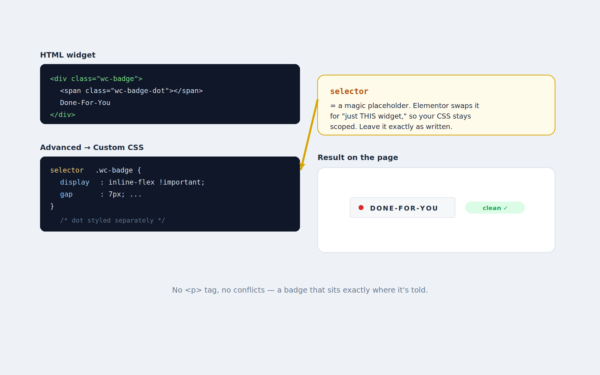
Good eye. If you’re new, that selector keyword at the start of each CSS rule might look like a typo. It’s not. Inside Elementor’s Custom CSS field, selector is a magic placeholder that Elementor automatically swaps out for “this specific widget, and only this one.” It keeps your CSS politely scoped so it doesn’t accidentally restyle every other badge on your site. So just leave it exactly as written — Elementor handles the rest.
The 10-second takeaway
When you need a small inline thing — a badge, an eyebrow, a label with a dot — don’t build it in the Text Editor widget. That widget wraps your content in a block-level <p> tag, and that tag fights everything you’re trying to do. Use the HTML widget instead, paste clean <div>-and-<span> markup, and style it with scoped Custom CSS.
The Text Editor is fantastic for what it’s for — paragraphs. It just makes a terrible bouncer for tiny pills. Pick the right widget for the job, and your badges will stop misbehaving for good.