

The haunted blue button
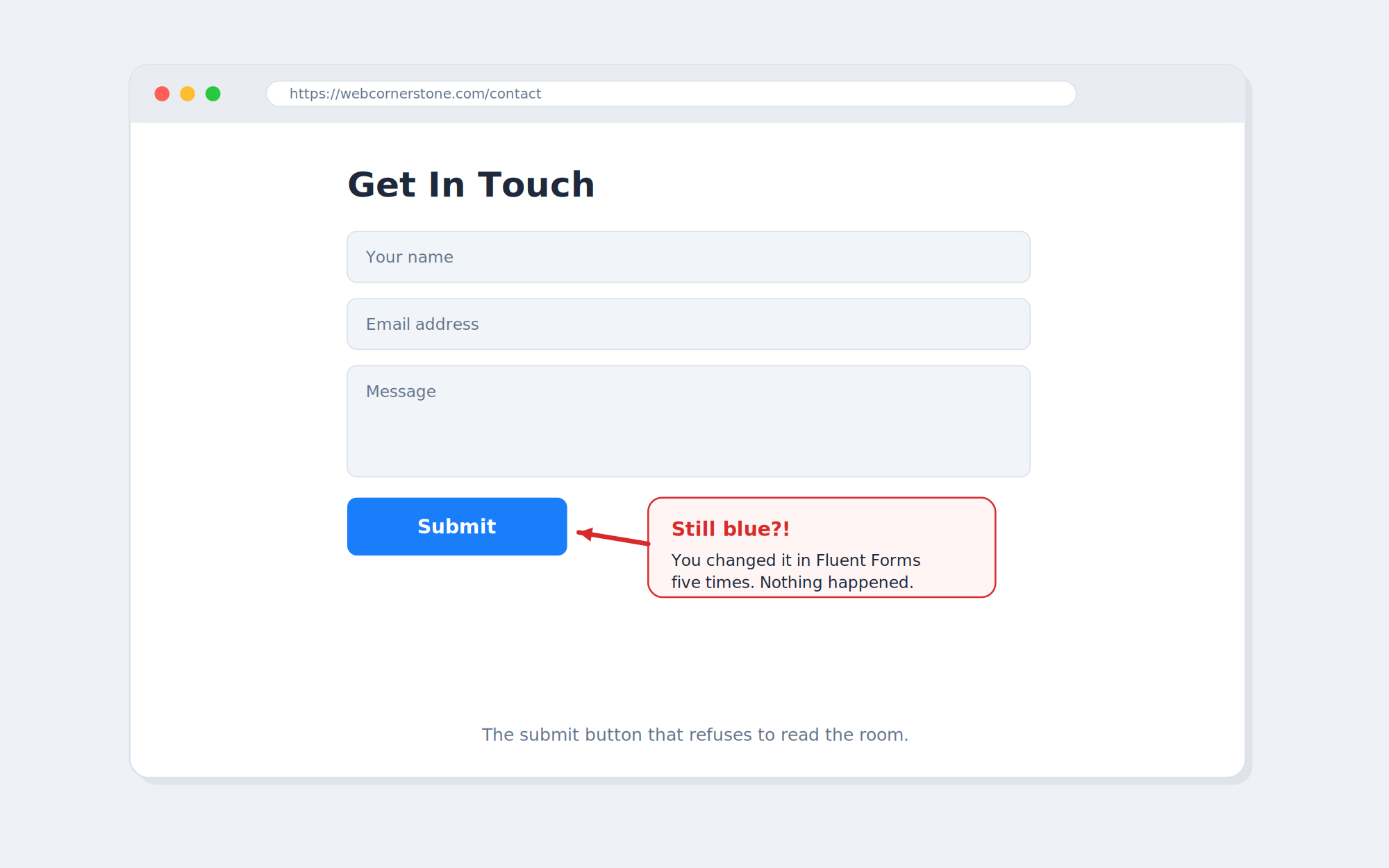
Picture this. You’ve built a beautiful form. The colors match your brand, the fonts are perfect, everything is chef’s-kiss tidy. There’s just one problem: the submit button is blue. A loud, aggressive, “I belong on a 2012 corporate website” kind of blue. So you do the sensible thing — you go into Fluent Forms, you find the button color setting, you change it, you hit save, you refresh the page with the confidence of someone who knows exactly what they’re doing…
…and the button is still blue.
You change it again. Still blue. You clear your cache. Blue. You clear your cache again, this time while whispering encouraging words to your computer. Blue. At this point you start to wonder if the button is haunted, or if you are, in fact, losing your mind. Good news: you’re not. There’s a very logical reason this is happening, and once you understand it, you’ll never get stuck on it again.
First, a quick vocabulary check (no shame if you’re new)
If you’re just starting out, three words are about to get thrown around a lot, so let’s get everyone on the same page:
- Fluent Forms — a popular WordPress plugin for building contact forms, surveys, and the like.
- An Elementor widget — a drag-and-drop block inside the Elementor page builder. Fluent Forms ships with a special “Fluent Forms” widget so you can drop a form onto your page by dragging instead of typing.
- A shortcode — a little snippet in square brackets, like
[fluentform id="5"], that tells WordPress “render my form right here.” Think of it as a teleport pad for content.
Both the widget and the shortcode put your form on the page. But — and this is the whole story — they do not behave the same way under the hood.
The actual culprit: Elementor’s widget brings its own paint can
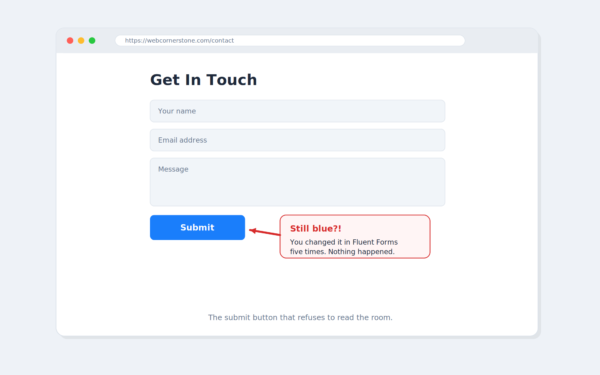
When you use the Fluent Forms Elementor widget, Elementor doesn’t just display your form. It quietly wraps it in its own styling system. Anything you set in that widget’s Style tab gets compiled into CSS and stapled directly onto your page — including that button color.
So when you went into the Fluent Forms plugin to change the color, you were politely asking one part of the system to make a change… while Elementor’s widget was standing behind it, arms crossed, saying “no, it’s blue, I already decided.” That’s why nothing happened. You were editing the wrong layer entirely.
A two-minute CSS lesson that explains everything
To understand why your own custom CSS also lost this fight, you need two quick concepts. Stick with me, this is genuinely useful forever.
Concept 1: !important is the “I’m not arguing about this” flag. When you add !important to a CSS rule, you’re shouting at the browser to obey that rule over normal ones. Handy. But here’s the catch most people don’t know…
Concept 2: When two rules both shout !important, the more specific one wins. “Specificity” is just a fancy word for how detailed a rule’s address is. A rule that targets “the button” is vague. A rule that targets “the button, on this exact page, inside this exact element, inside these five nested boxes” is laser-precise. The precise one wins, every time. It’s the difference between addressing a letter to “someone in the Philippines” versus “Romel, 3rd floor, the blue door, second desk on the left.” Guess which one actually arrives.
Now look at the CSS Elementor’s widget generated:
.elementor-140 .elementor-element.elementor-element-c159f1e
  .fluentform-widget-wrapper .ff-el-group .ff-btn-submit {
    background-color: #1a7efb !important;
    color: #ffffff !important;
}
Count the layers: a page ID, an element ID, and five nested classes — all stacked together and finished off with !important. That’s an absurdly specific address. Meanwhile your own rule probably looked something more like this:
.mp-form-wrap .ff-btn-submit {
    background-color: #D72B2B !important;
}
Two classes versus seven layers plus IDs. You both yelled !important, but Elementor’s selector was so much more specific that it won the argument by a mile. Your rule never stood a chance. It wasn’t your code that was wrong — you just brought a slingshot to a tank fight.
The big realization: the blue was never coming from Fluent Forms. It was set in the Elementor Fluent Forms widget’s Style tab, which compiles into an unbeatable selector. That’s why editing the plugin did absolutely nothing.
The fix: skip the widget, use the shortcode
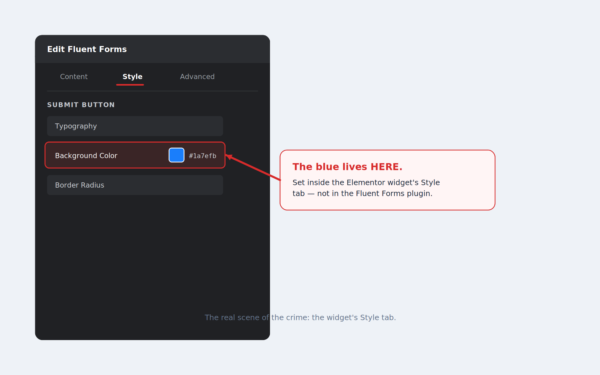
Here’s the beautiful part. The fix isn’t to win the specificity war — it’s to never start it. Instead of using the Fluent Forms Elementor widget, drop your form in using its shortcode. When you do that, Elementor stops slathering on its own button styles, and your form happily takes whatever styling you give it. You get your control back.
Step by step:
- In your WordPress dashboard, go to Fluent Forms → All Forms. Each form has a shortcode listed next to it — something like
[fluentform id="5"]. Copy it. - In Elementor, delete the Fluent Forms widget you were using.
- Drag in a Shortcode widget (or an HTML widget) where the form should go.
- Paste the shortcode in. Save. Your form appears — minus Elementor’s bossy button styling.
- Now add your button styles wherever you normally do (Custom CSS, your child theme, etc.), and watch them actually apply.
The 10-second takeaway
If you’re styling a Fluent Forms form on an Elementor page and your CSS keeps getting ignored, the Elementor widget is almost always the reason. Its auto-generated styles are too specific to beat. So don’t beat them — bypass them. Use the shortcode, style the form yourself, and reclaim your sanity.
Your button will finally be the color you chose. And honestly, after the week it gave you, it owes you that much.